Visits and tracking links
A visit (called a journey in the API) is one trip to one customer. Each visit has its own tracking link for the customer and a share-location link for the operative.
Create a visit
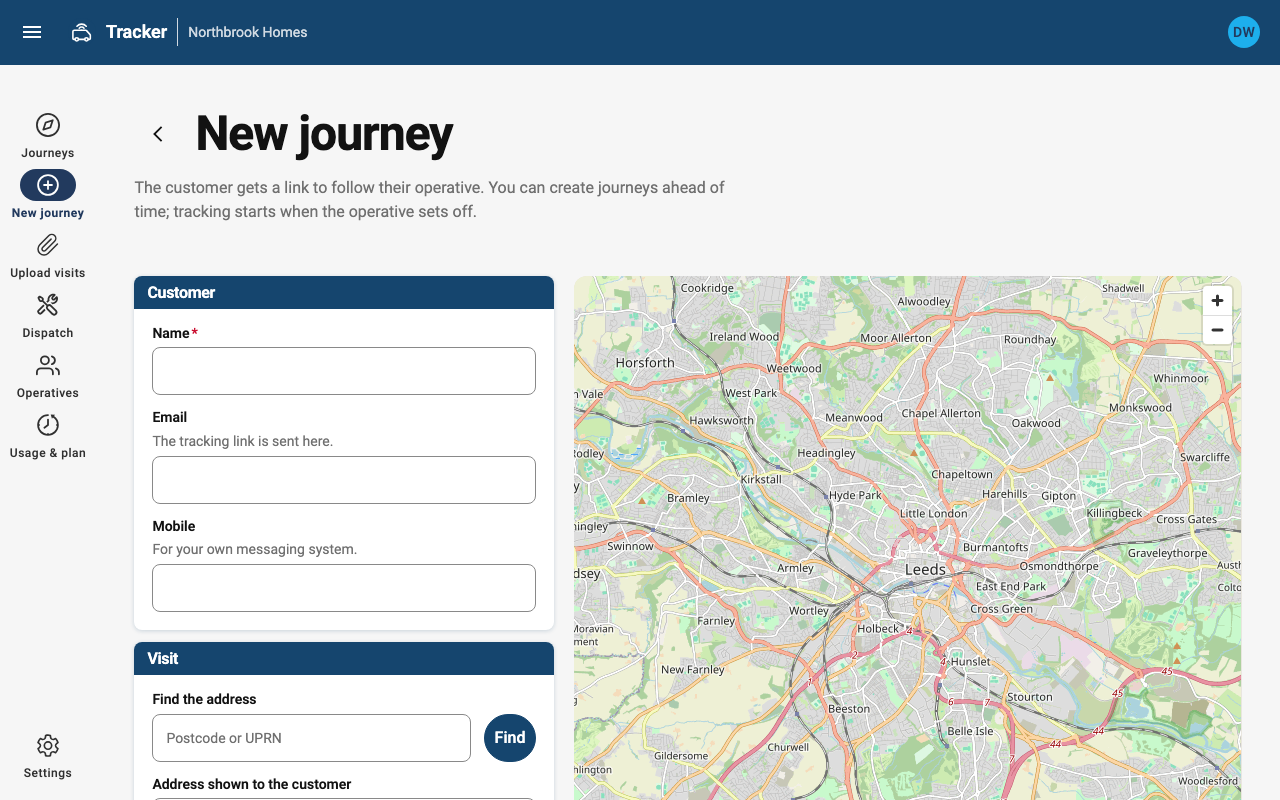
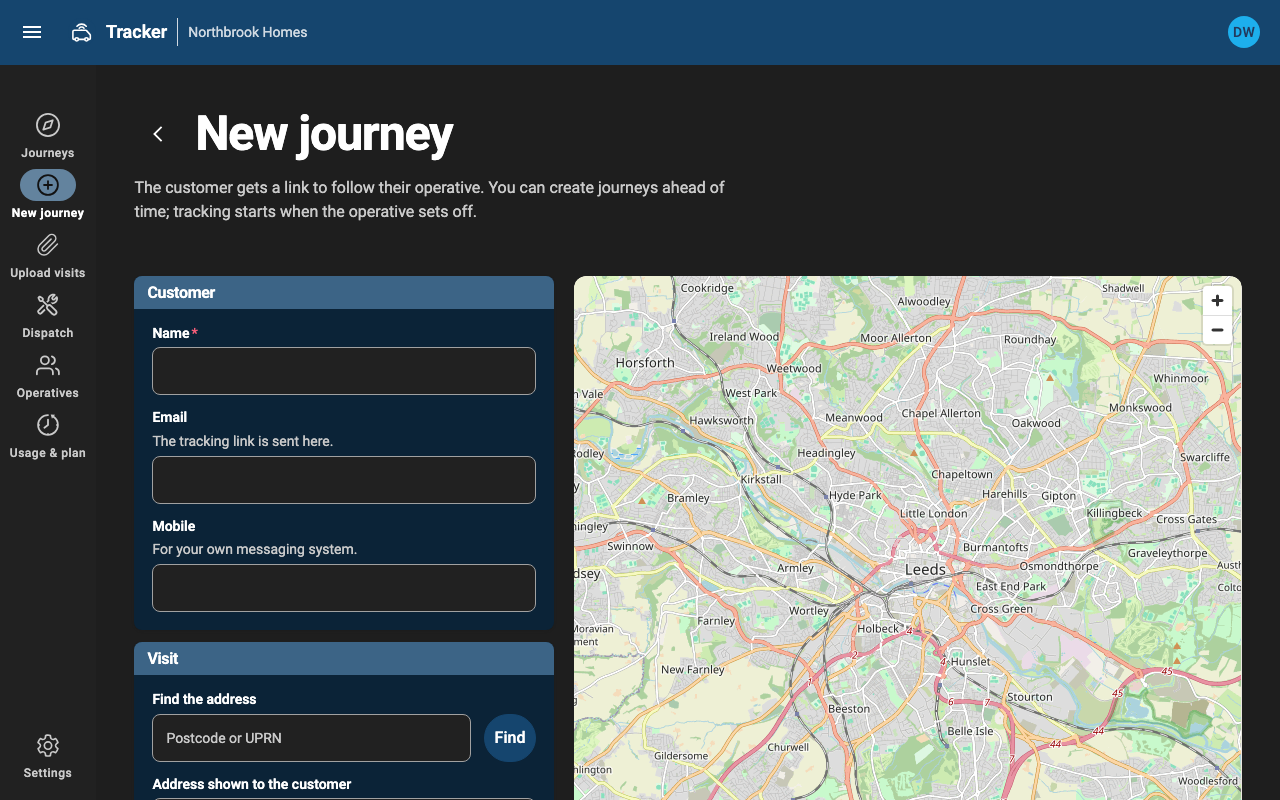
Choose New journey. You need:
- The customer's name. Add an email to send them the link automatically.
- Where the visit is. Search for an address or postcode, or enter a UPRN. A UPRN puts the pin on the right building even where postcodes cover several streets.
- The appointment window (optional). Customers see it until the operative sets off.
- The operative (optional). Often nobody knows until the day. Customers see the name once someone is assigned.
Each visit counts towards your plan's monthly allowance when it's created.
Upload visits from a spreadsheet
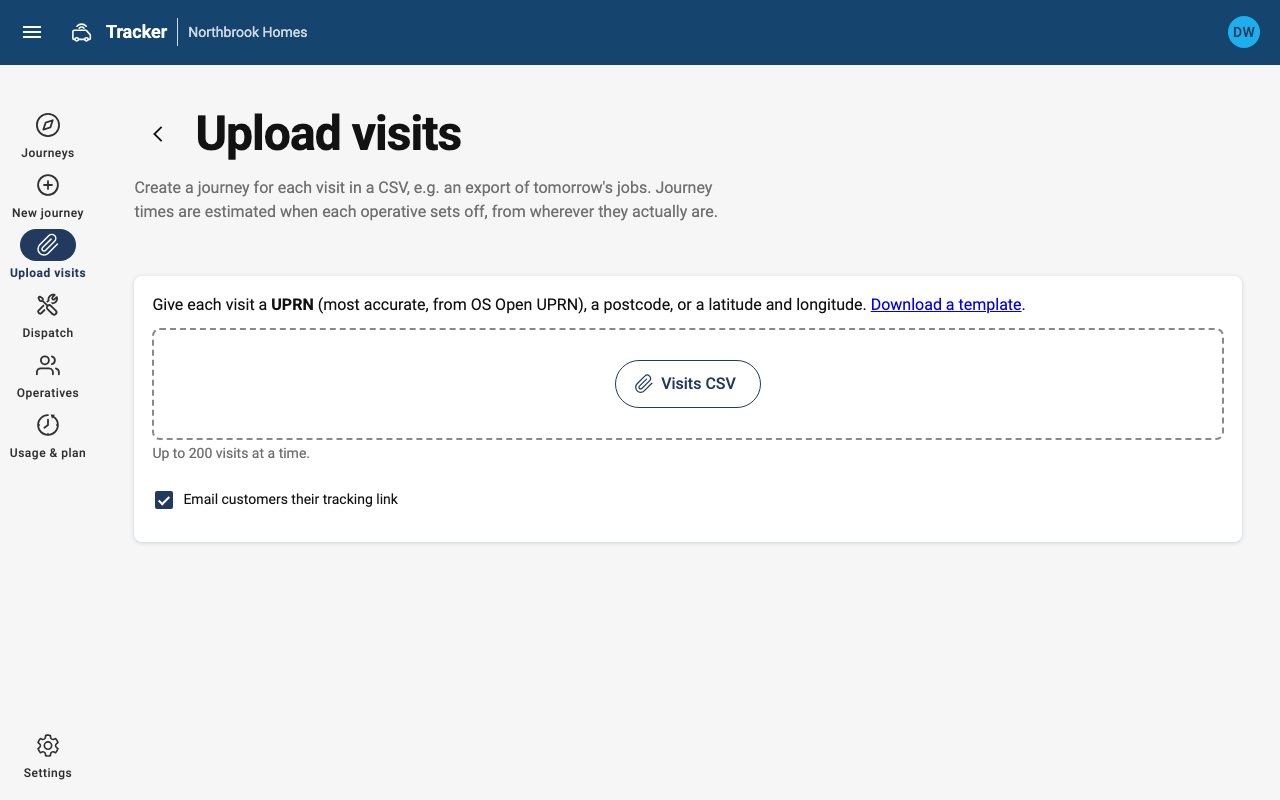
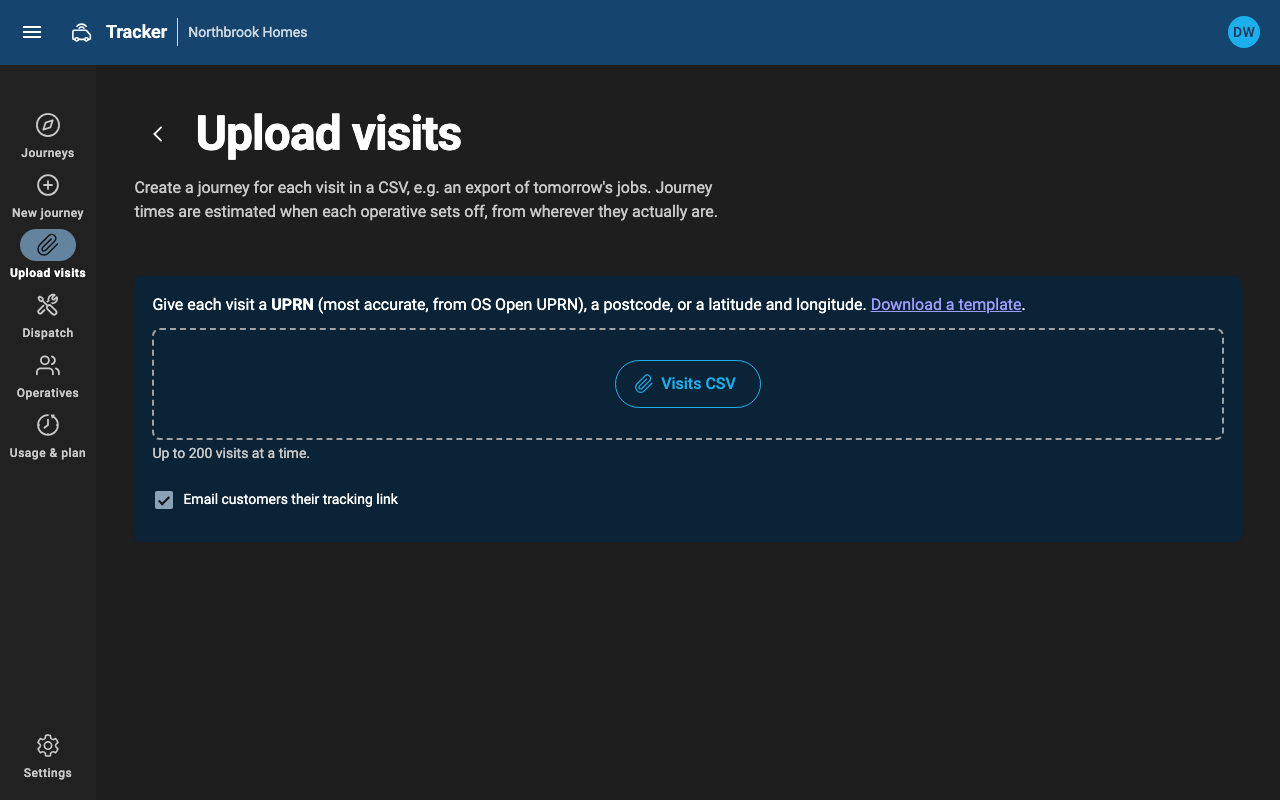
Upload visits takes a CSV of up to 200 visits, such as tomorrow's jobs exported from your job system. Download the template from the page for the columns:
ref, customer_name, customer_email, customer_phone, uprn, postcode, lat, lng, address, date, window_start, window_end, operative
Every row is checked before anything is created, so you can fix problems first. Each row then succeeds or fails on its own.
What happens to a visit
| Status | What it means |
|---|---|
| Scheduled | Booked. The customer sees the appointment window. Scheduled visits nobody starts expire after 48 hours. |
| On the way | The operative has set off. The customer sees a live map and arrival time. |
| Arrived | The operative tapped "I've arrived" or came within 60 m of the address. |
| Cancelled | You cancelled it, and the customer was told. |
| Expired | Never started, or still on the way after 4 hours. |
Follow a visit
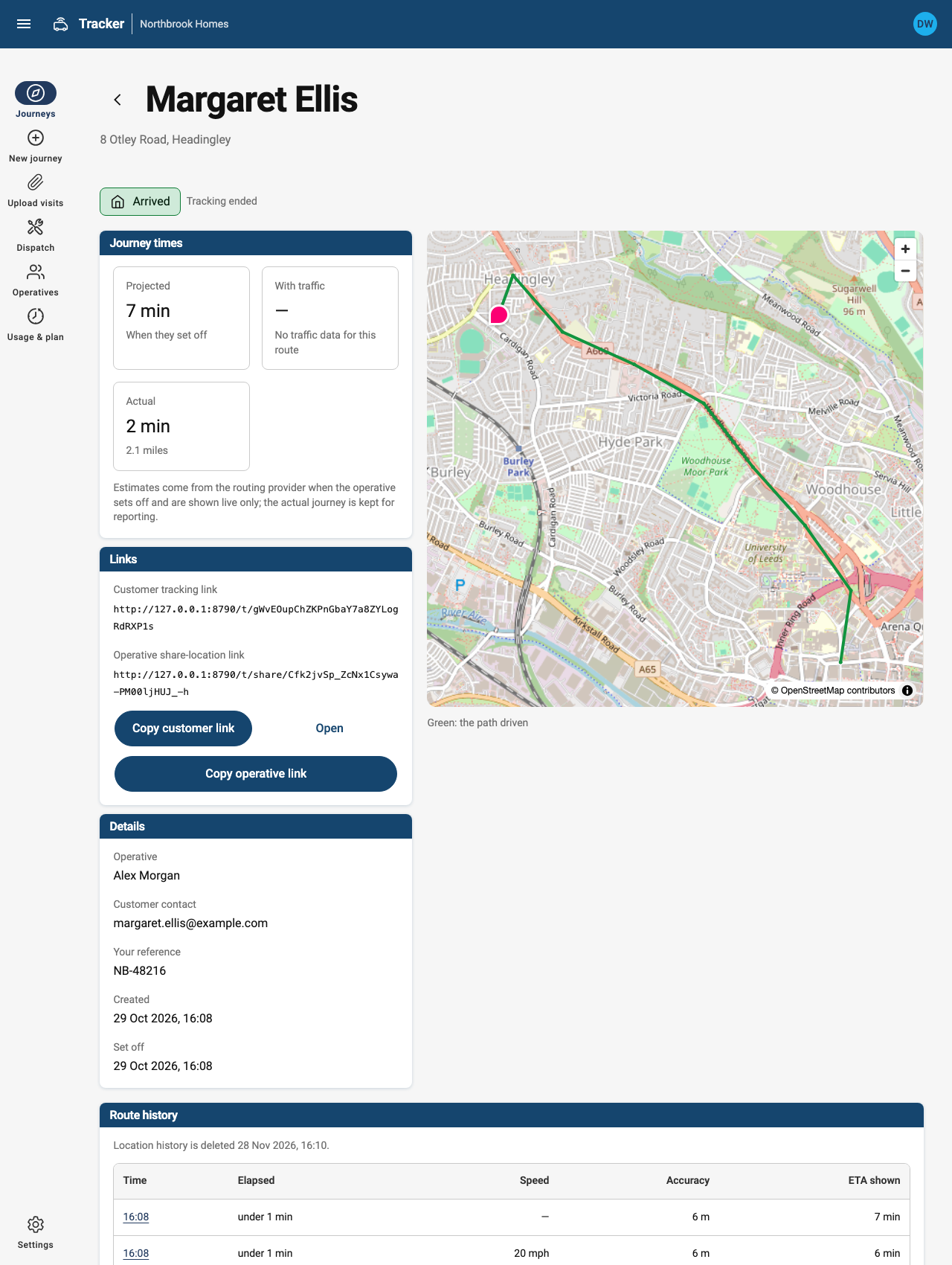
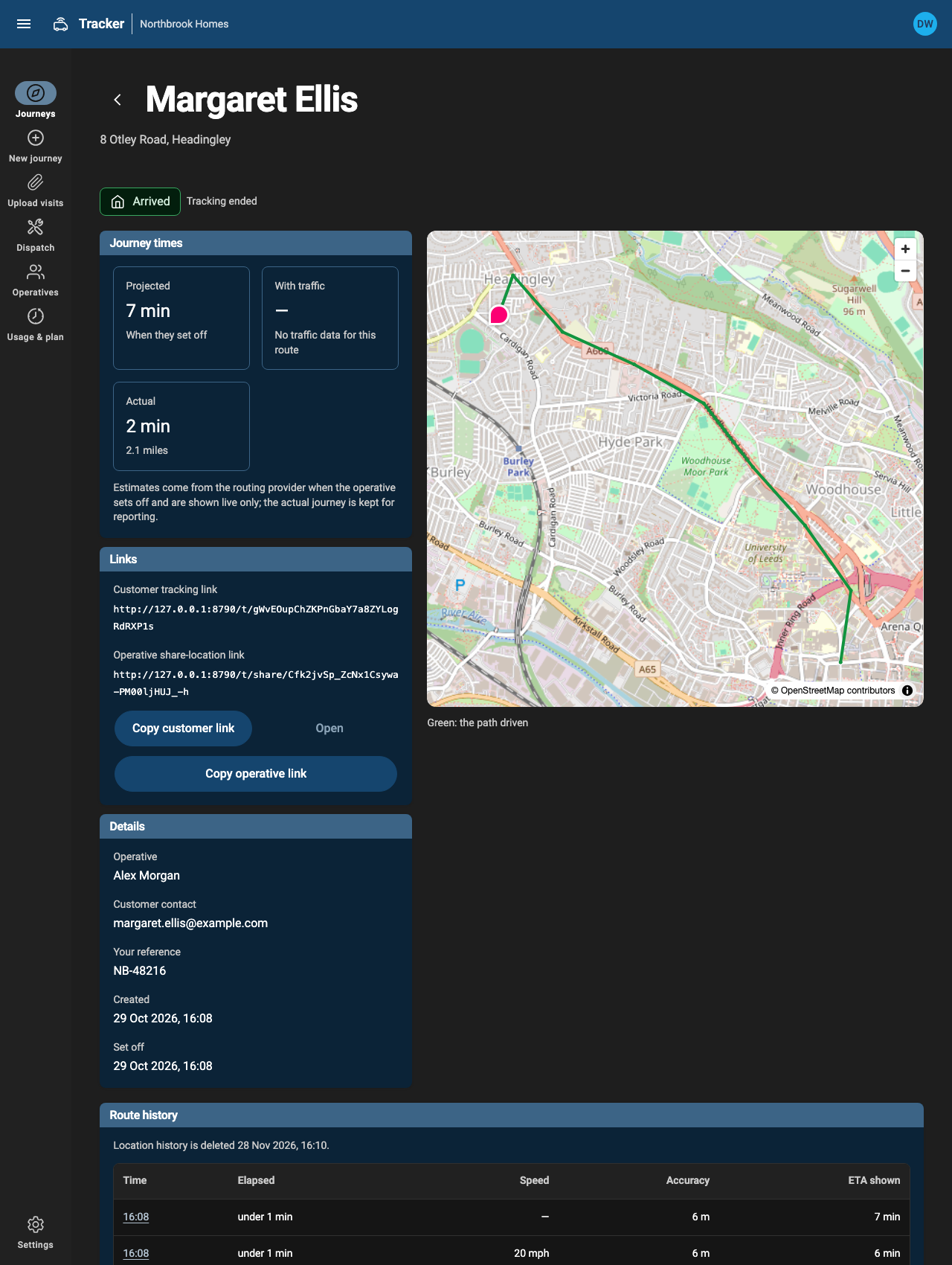
Open any visit to see its status, both links and the times. While the operative is on the way, the map shows them moving along the route.
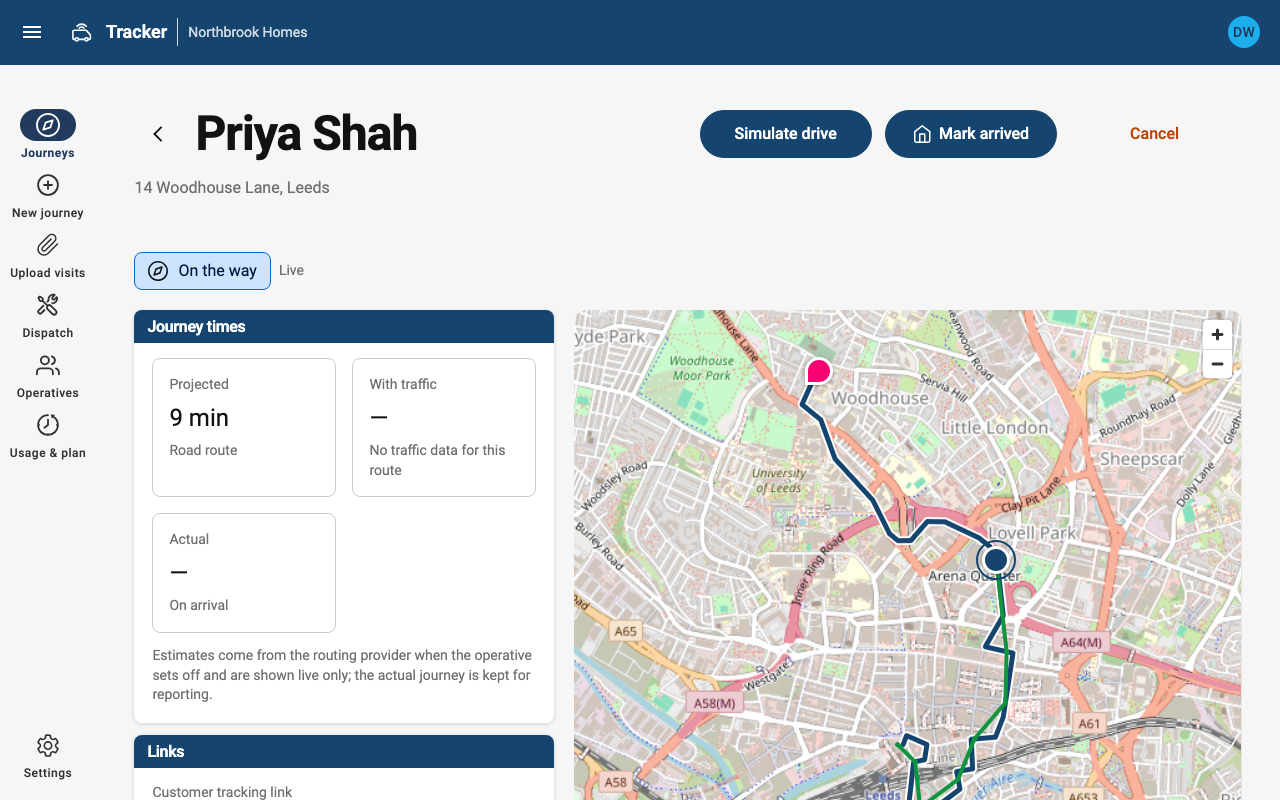
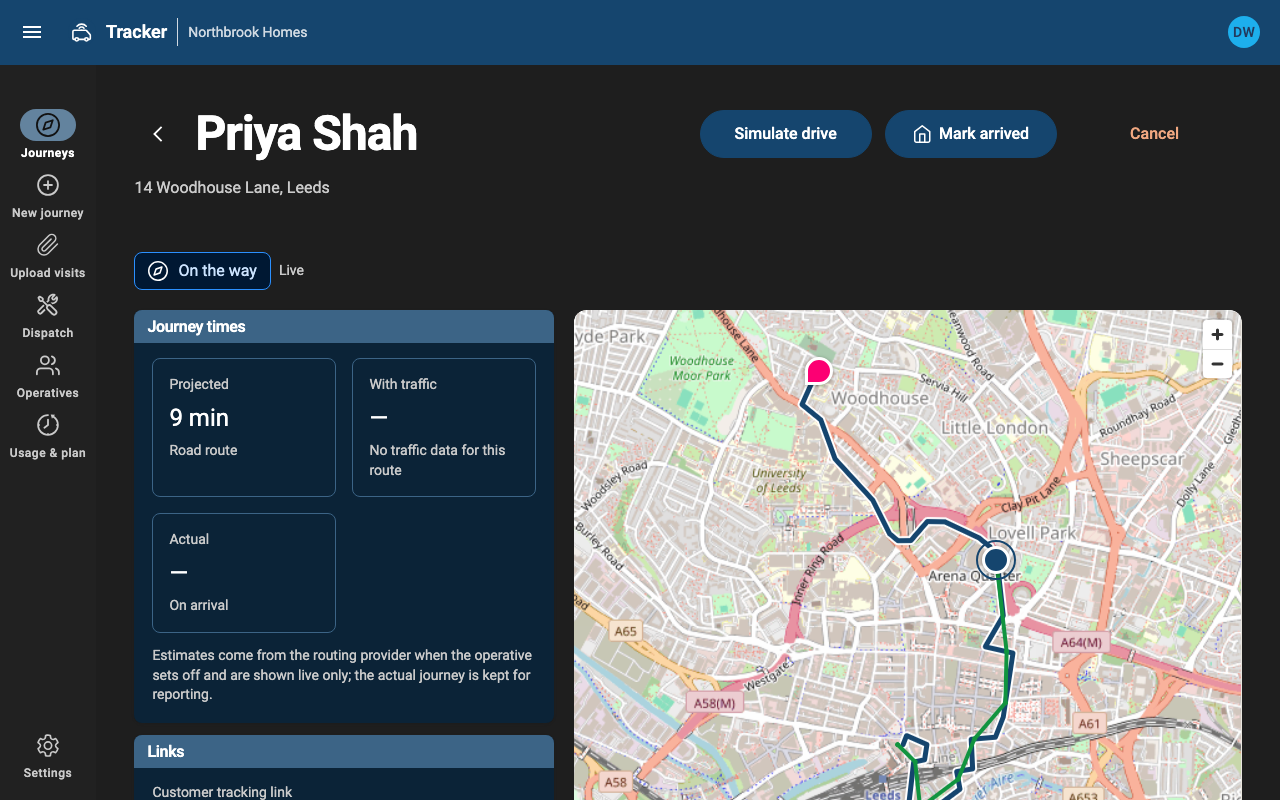
After arrival you can see the actual journey time and distance. On plans with visit history, you can also see the route driven and the arrival time the customer was shown at each point.
Shortly after arrival, the route driven is matched to the roads. Where the phone had no accurate location (between tall buildings, in a tunnel, or with Tracker paused), the line is dashed: those are the likely roads, or a straight line if the gap was too long to tell. Updates less accurate than 50 metres aren't drawn.