Getting started
ROCC Tracker sends each customer a link to follow their visit: who is coming, where they are and when they'll arrive. This guide gets you from a new account to your first live visit.
1. Register your organisation
Open the admin and choose Create an account. You'll need your organisation's name, the sector you work in, and your own name, email and a password.
Or choose Sign up with Microsoft to use your work Microsoft account instead of a password. Microsoft fills in your name and email, and you add your organisation's name and sector. Personal Microsoft accounts (such as Outlook.com) can't be used.
Your IT team may need to approve Tracker. Many organisations only let their IT team approve new apps that use Microsoft sign-in. If Microsoft says you need admin approval, send your IT team the approval link under the button. Once one of their admins approves Tracker, everyone in your organisation can use Microsoft to sign in to it. Tracker asks Microsoft only for your name and email address.
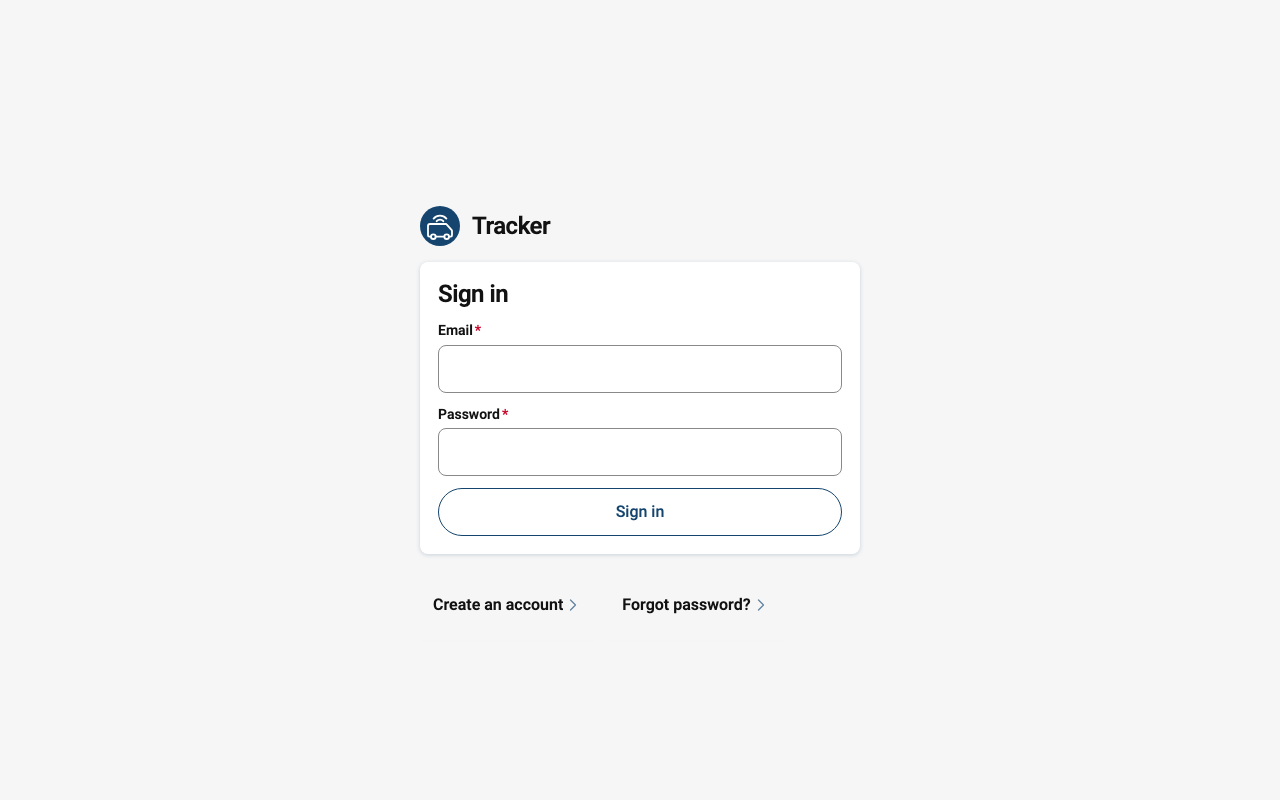
You accept the Terms of Service and Data Processing Agreement for your organisation when you register. We email you a link to confirm your address, including when you sign up with Microsoft. Until you confirm it, you can look around but can't create visits.
Eligibility. The Free plan is for housing, repairs and property services teams. Organisations in those sectors are approved straight away. If you choose Other, ROCC checks your registration first, and you'll see "Awaiting approval" until we have.
2. Send your first tracking link
Choose New journey, enter the customer and the address, and save. If you add the customer's email, they get a "your visit is booked" email with their link straight away. You can also copy the link from the visit and send it yourself.
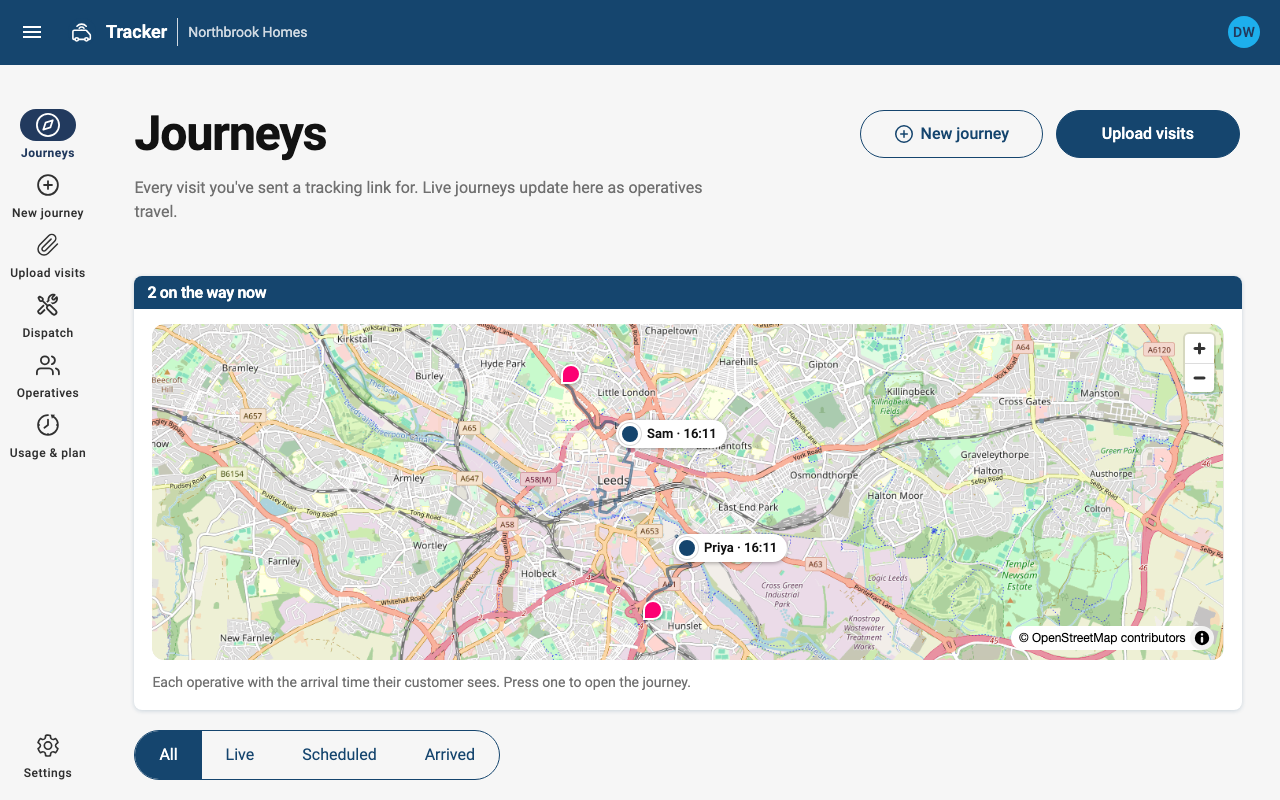
When the operative sets off, the customer's page switches to a live map with an arrival time. See the customer's tracking page.
3. Bring your operatives on board
Add each operative on the Operatives page with their email, and tick Email them an invite now. The invite opens the Tracker app on their phone already signed in. Operatives without the app can use the share-location link on each visit instead. See Operatives.
4. Plan the day
Give visits to operatives and put them in order on the dispatch board, or upload a spreadsheet of tomorrow's visits. To create visits from your job system automatically, use the API.